Activate Device & Connect to Mobile
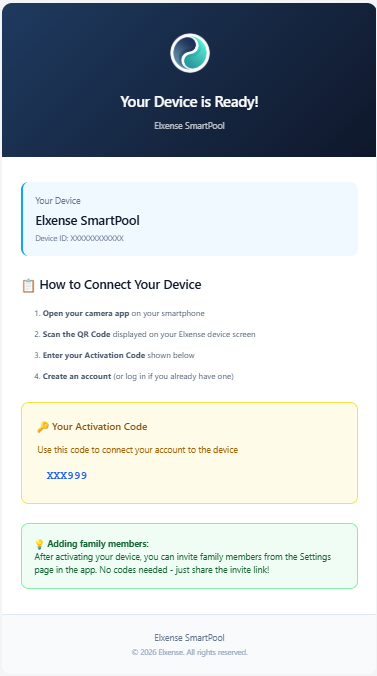
- Before activating the device, the system will send an activation email to the customer's email address as shown. The sender name is noreply@elxense.com.
- If you don't receive the email in your inbox, check your spam or junk folder first.
- The email contains an OTP code for activation. The OTP can only be used once.
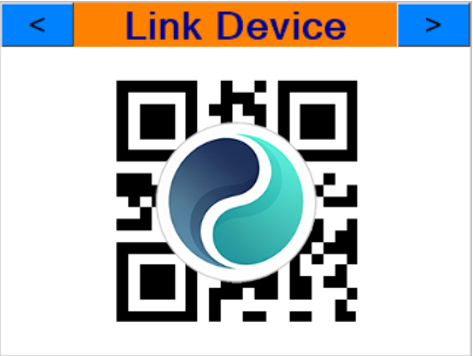
- Open the Link Device page on the device as shown.
-
Open the camera app on your mobile phone and scan the QR Code on the device screen.
-
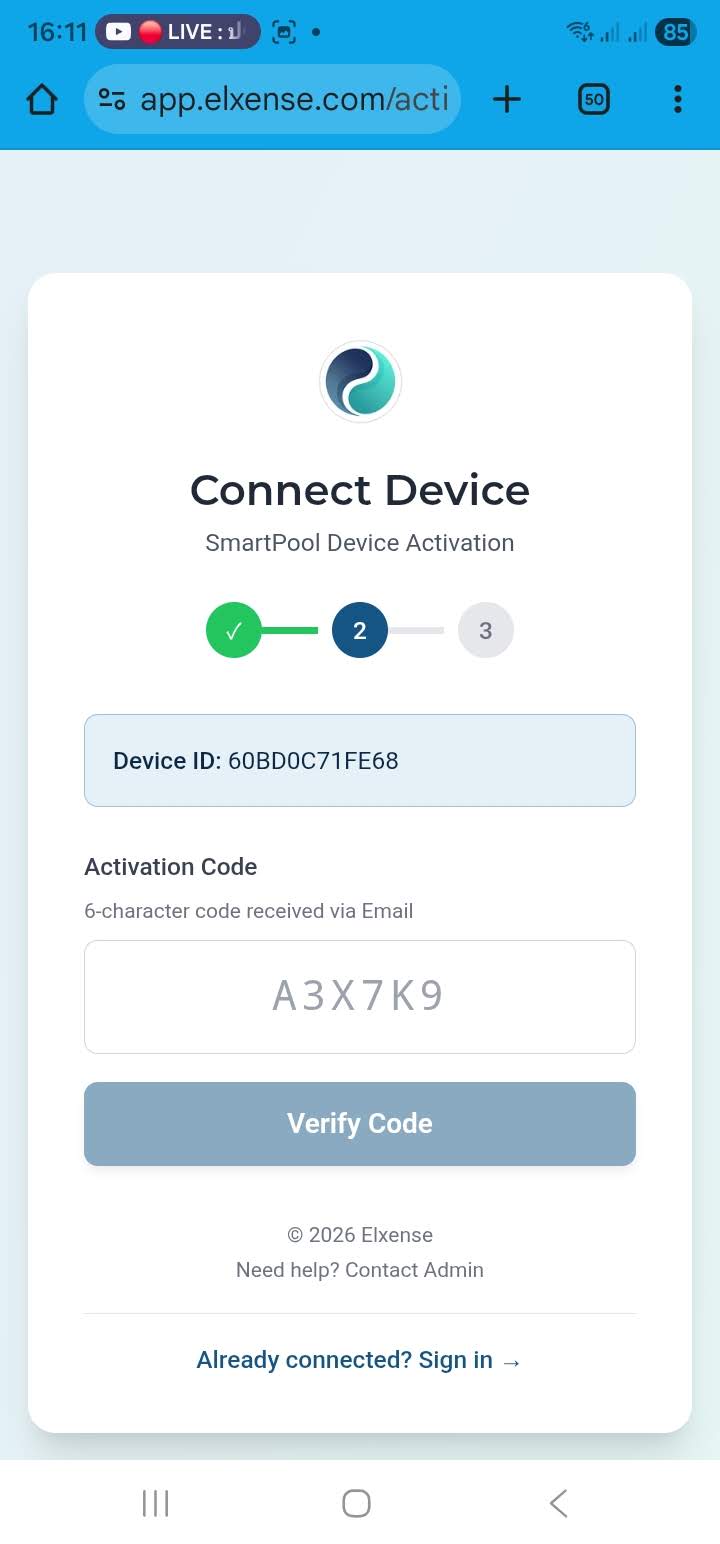
After scanning the QR Code, your mobile will display the Activate page as shown. Enter the OTP code received via email into the Activate Code field, then press Verify Code.
- If the OTP is correct, the next page will be the account creation page. After entering your phone number and address, and checking ✔️ to accept the Privacy Policy and Terms of Service, there are 2 ways to create an account:
- Use Google Sign-In if you already have a Google account
- Set up your own username and password (you can link to a Google account later)
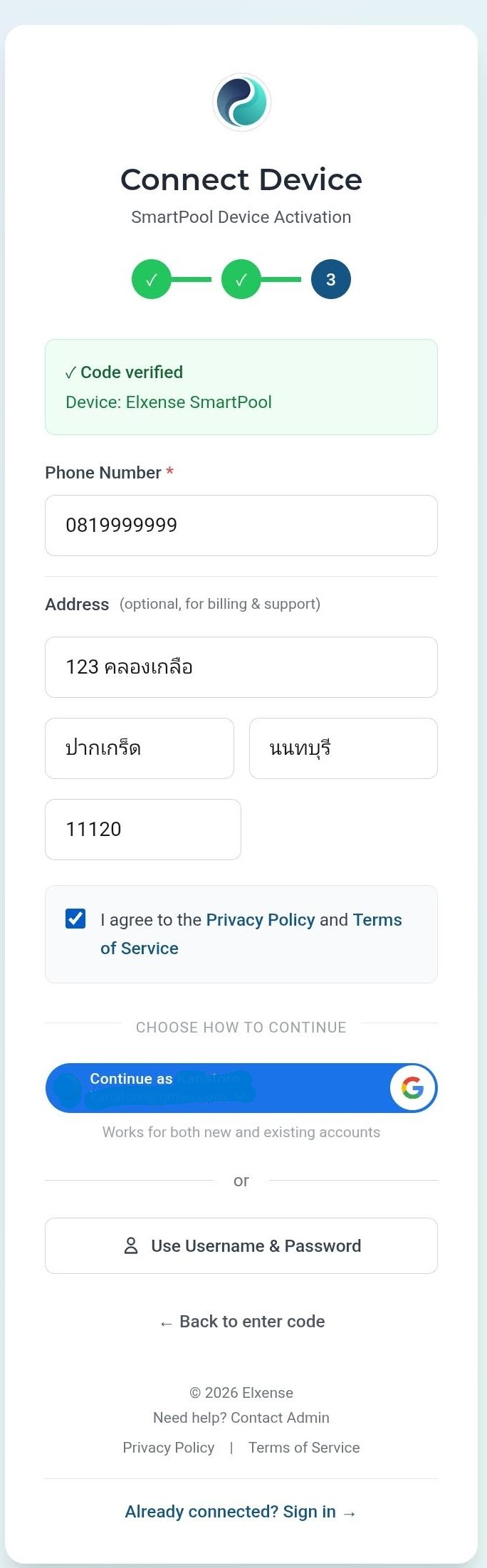
- The system will automatically log you into the Dashboard. If you cannot access it, log in with the username and password or Google Account you used during registration in step 5.
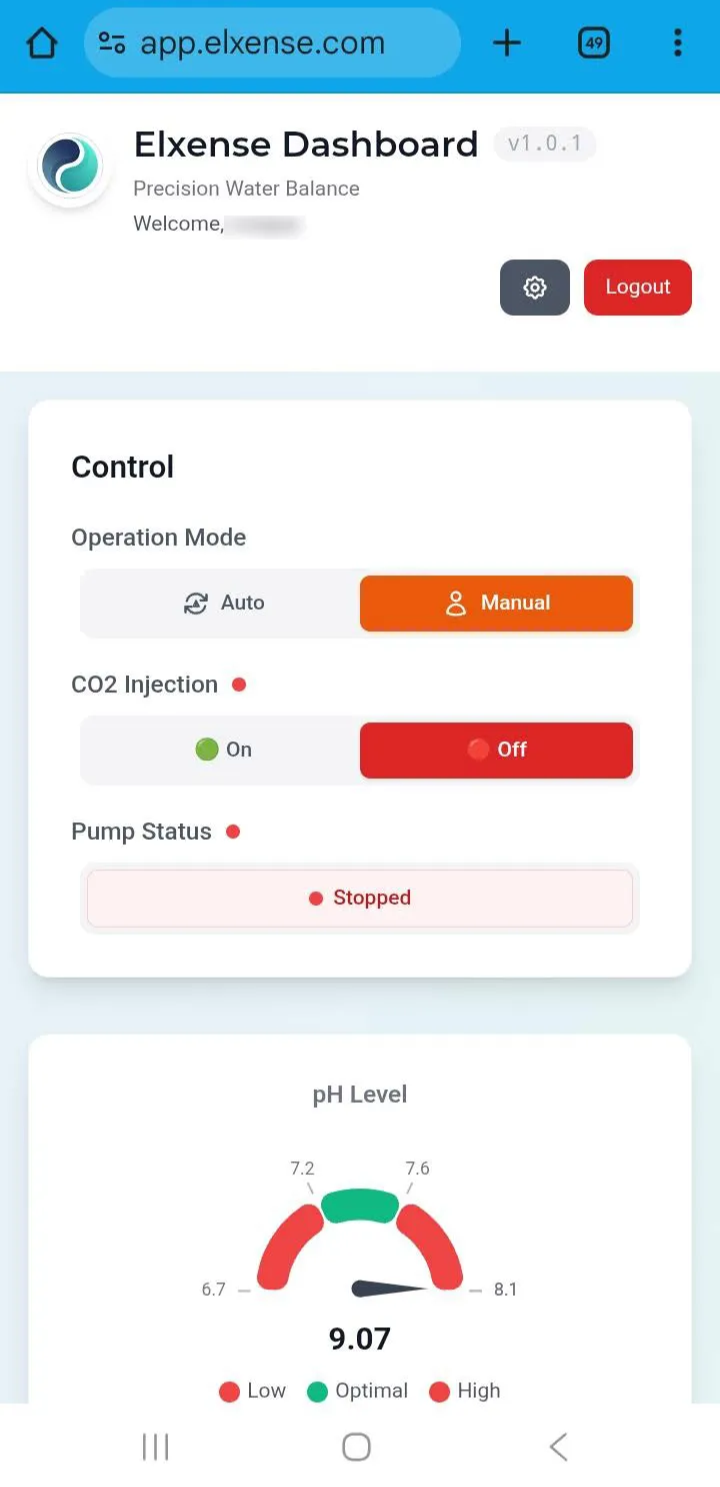
- Once logged in, you will see the Dashboard as shown. The system is now ready for use. For convenience, you can install it as an app on your phone:
Install App on iOS
- Tap the ... button as shown.
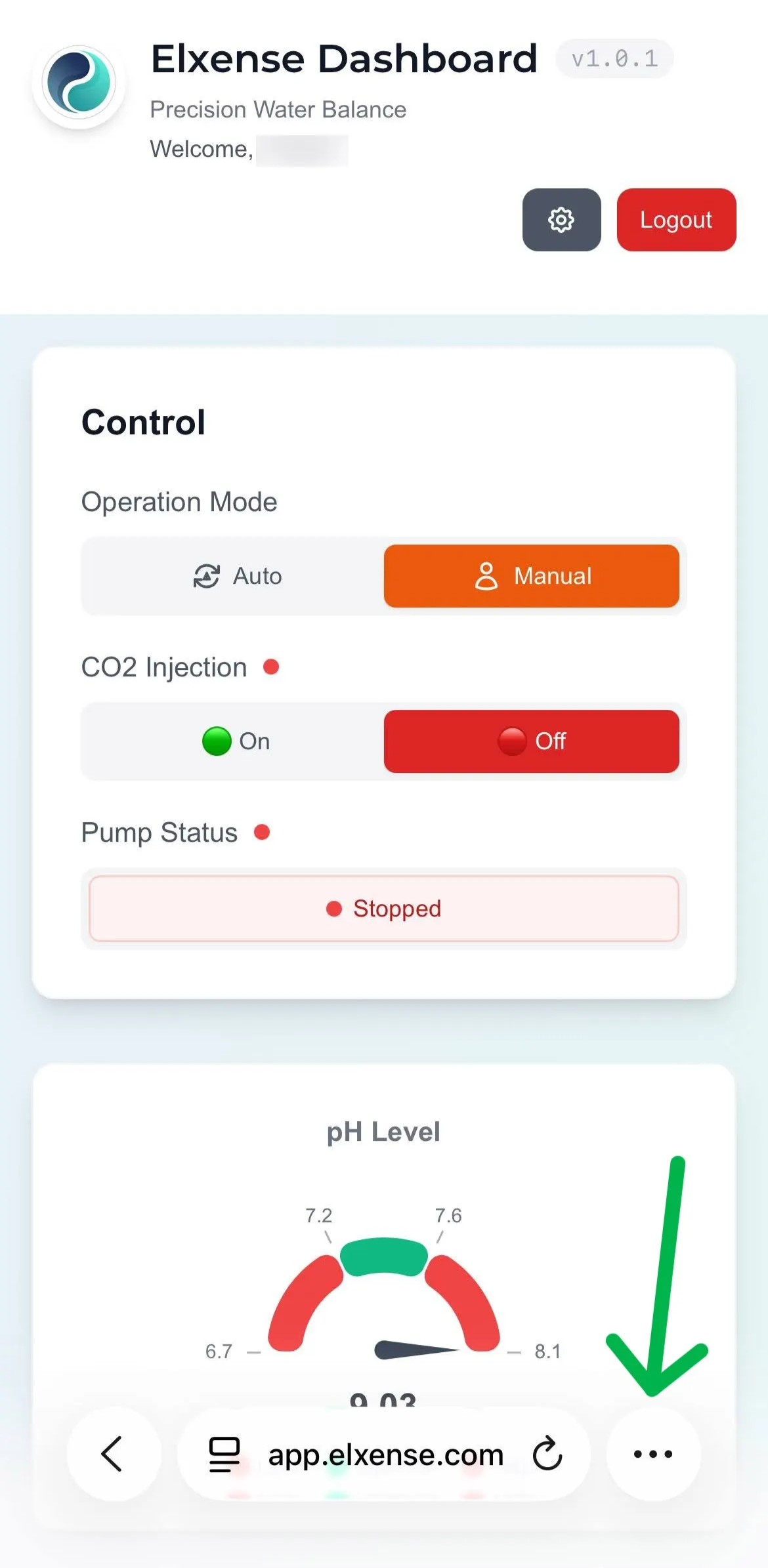
- Select Share
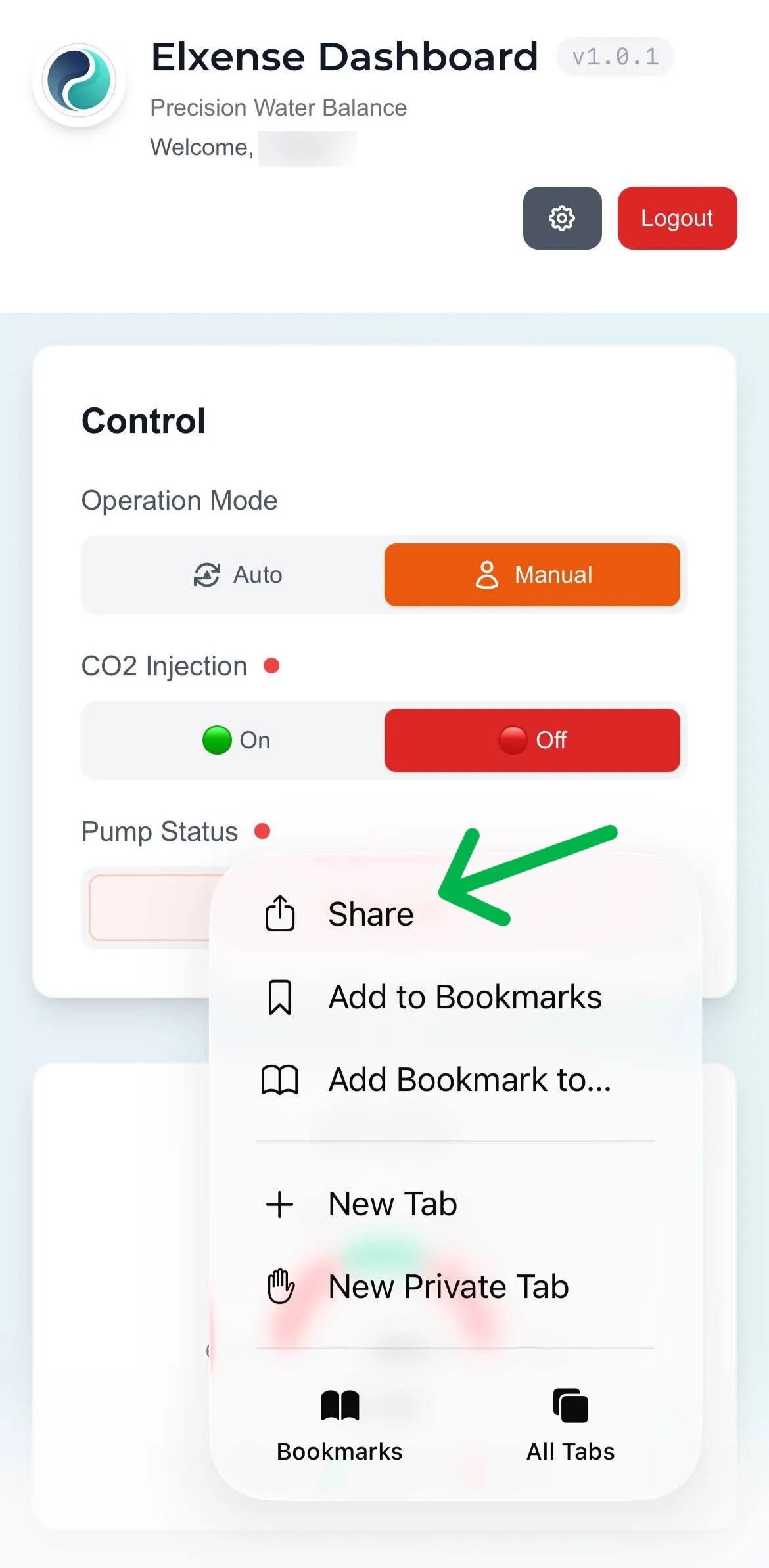
- Select More
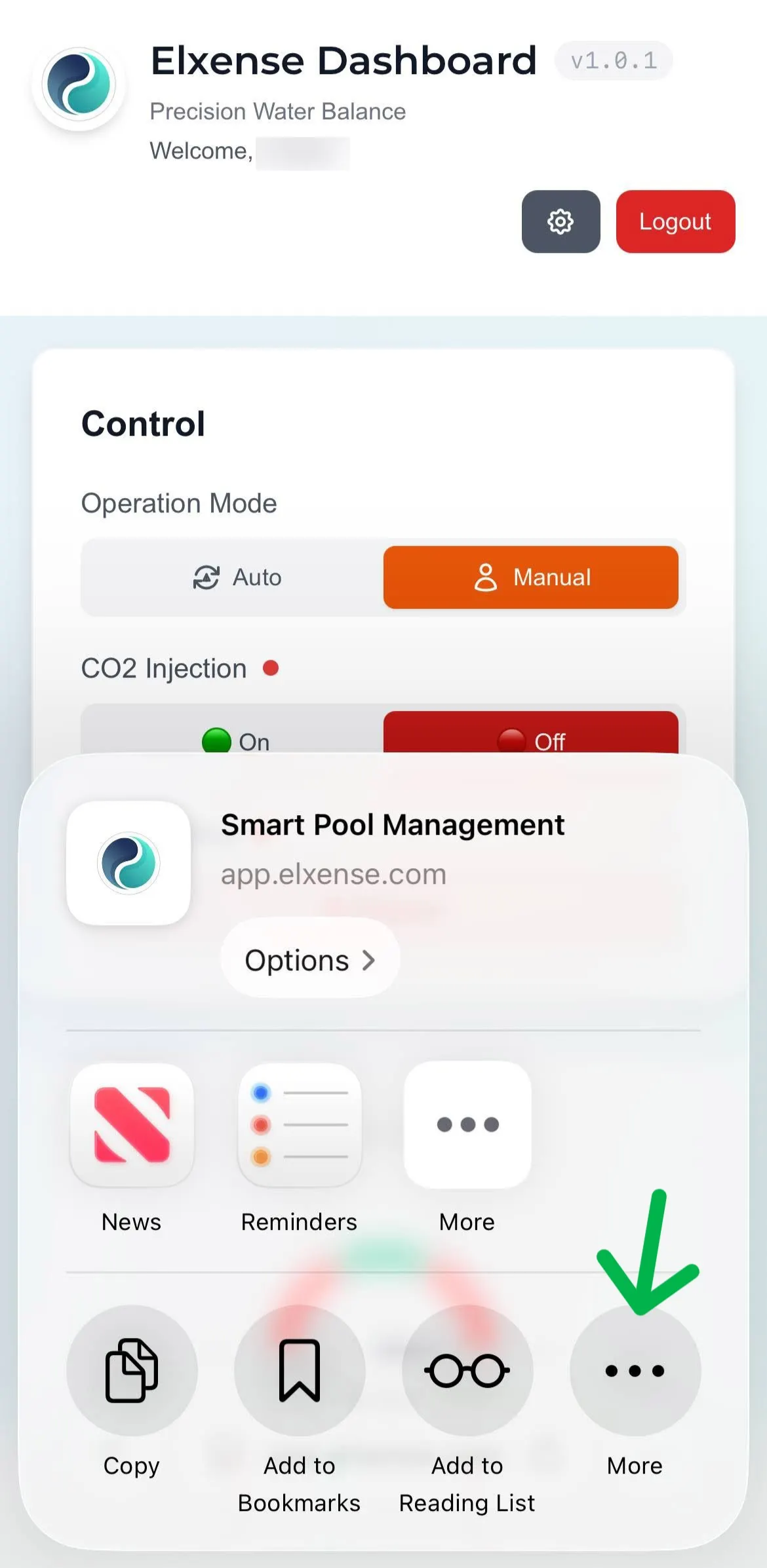
- Select Add to Home Screen
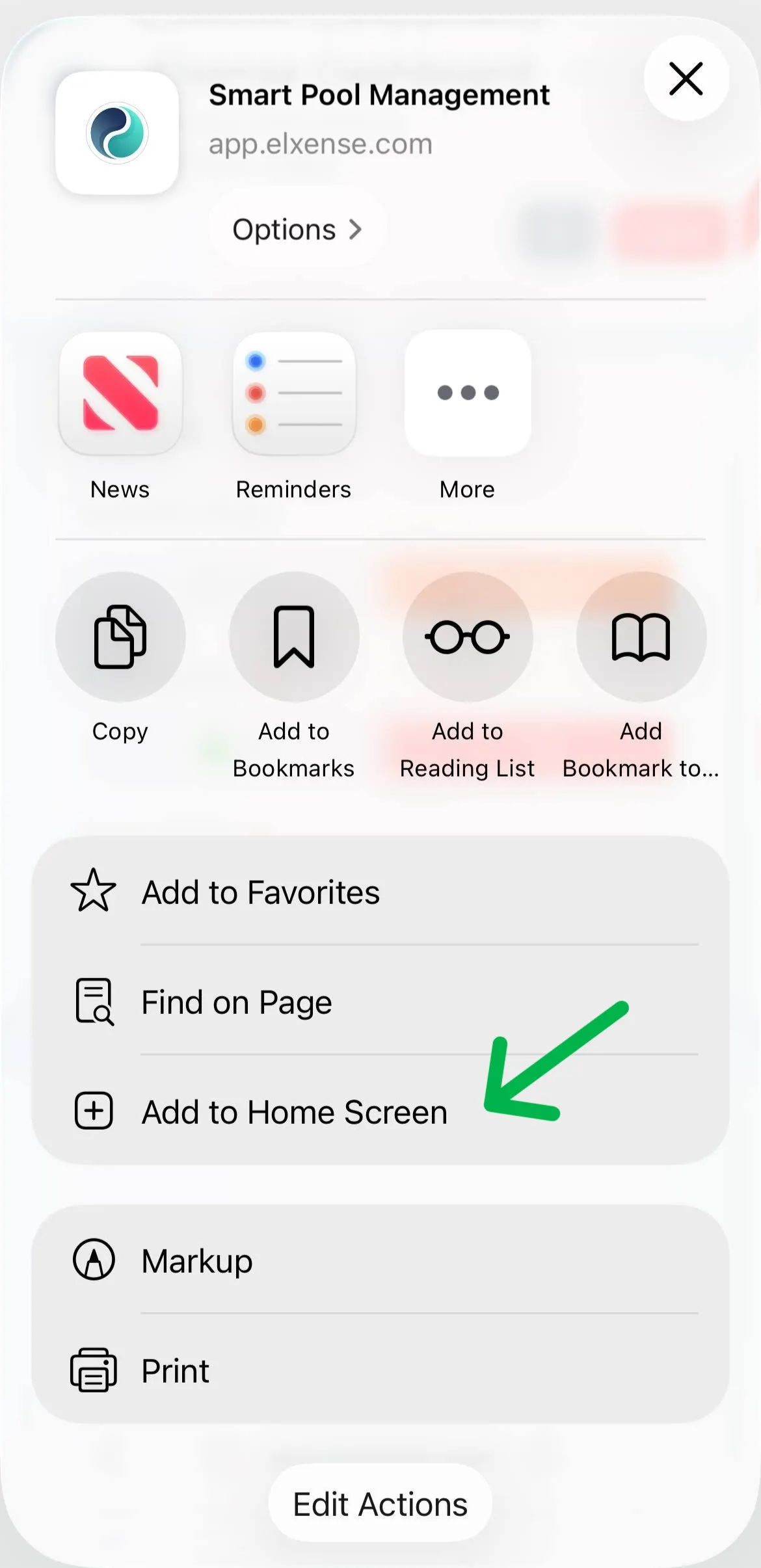
- Once installation is complete, you will see Elxense in your Launcher.
Install App on Android
- Tap the … button as shown.
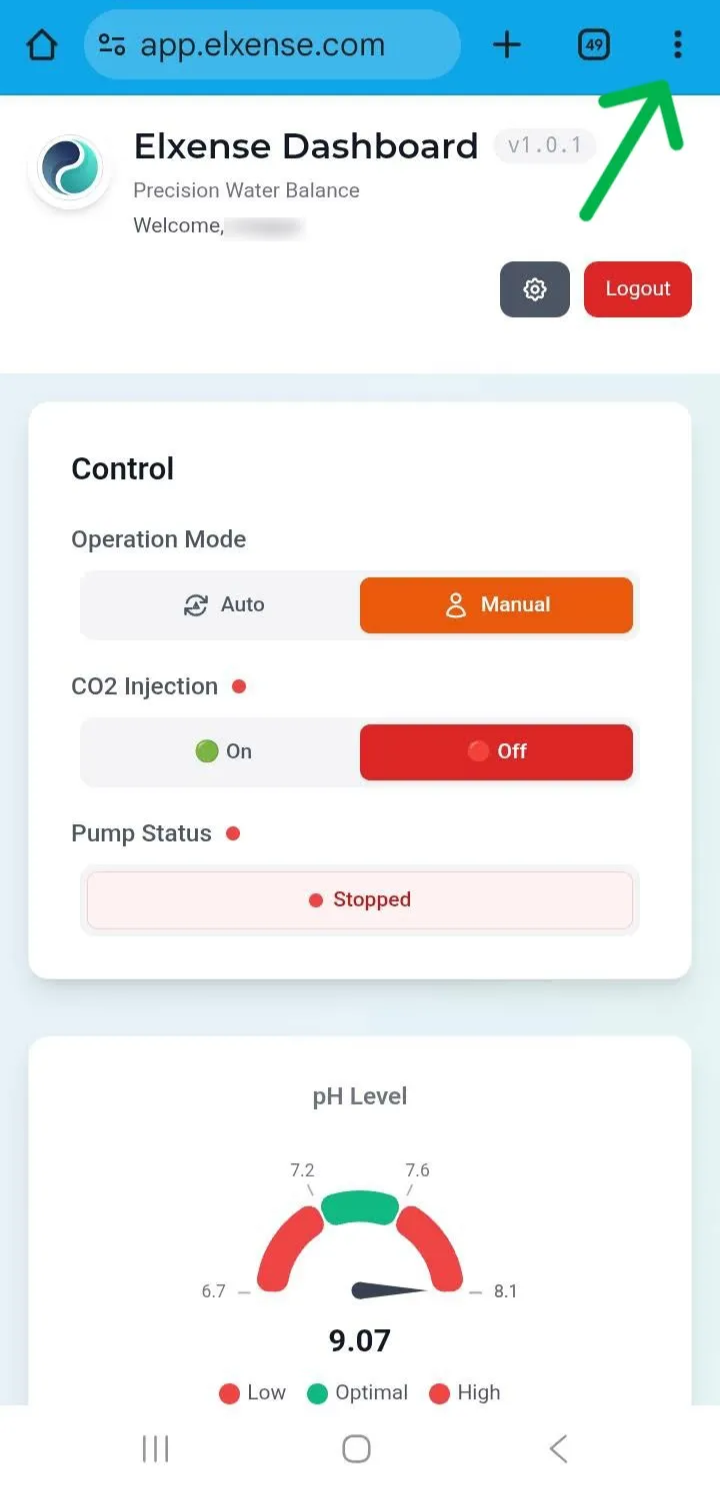
- Select Add to Home Screen
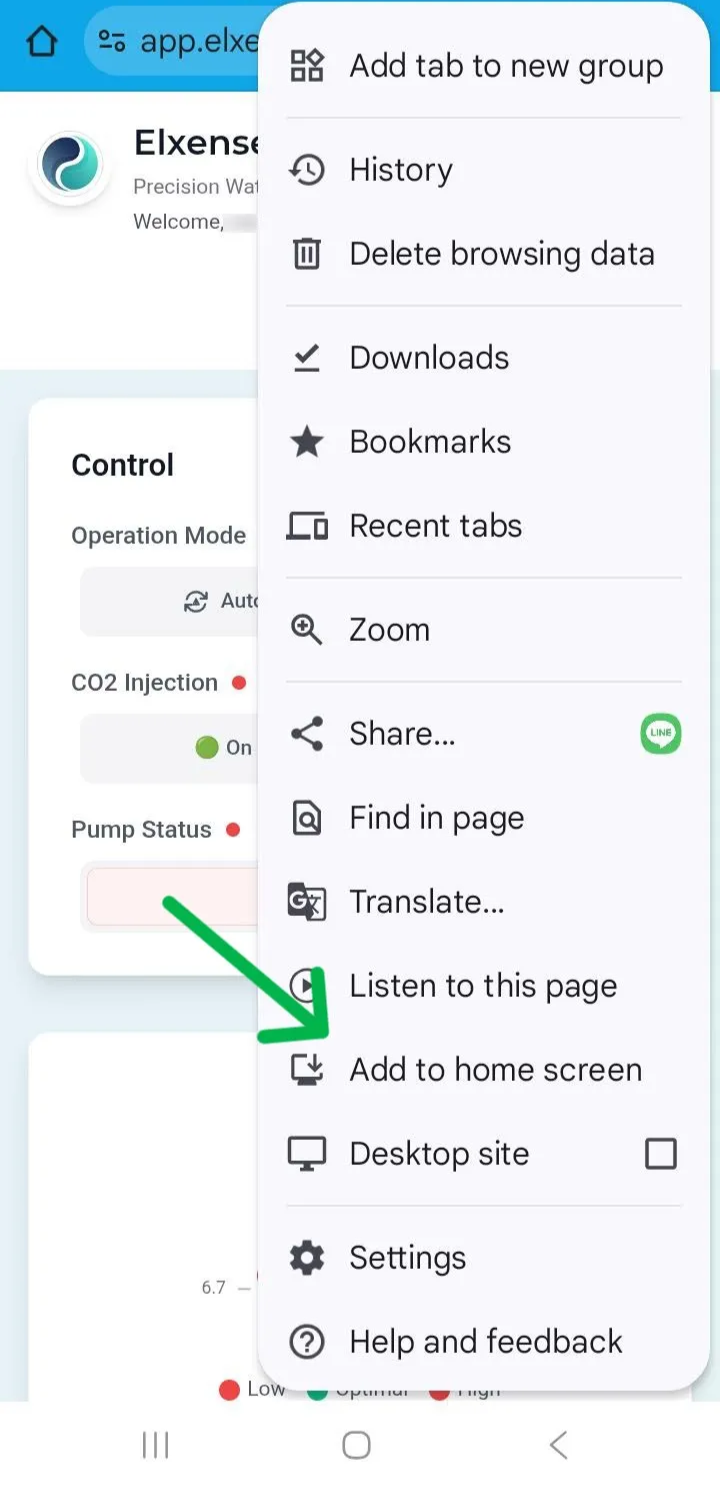
- Tap Install
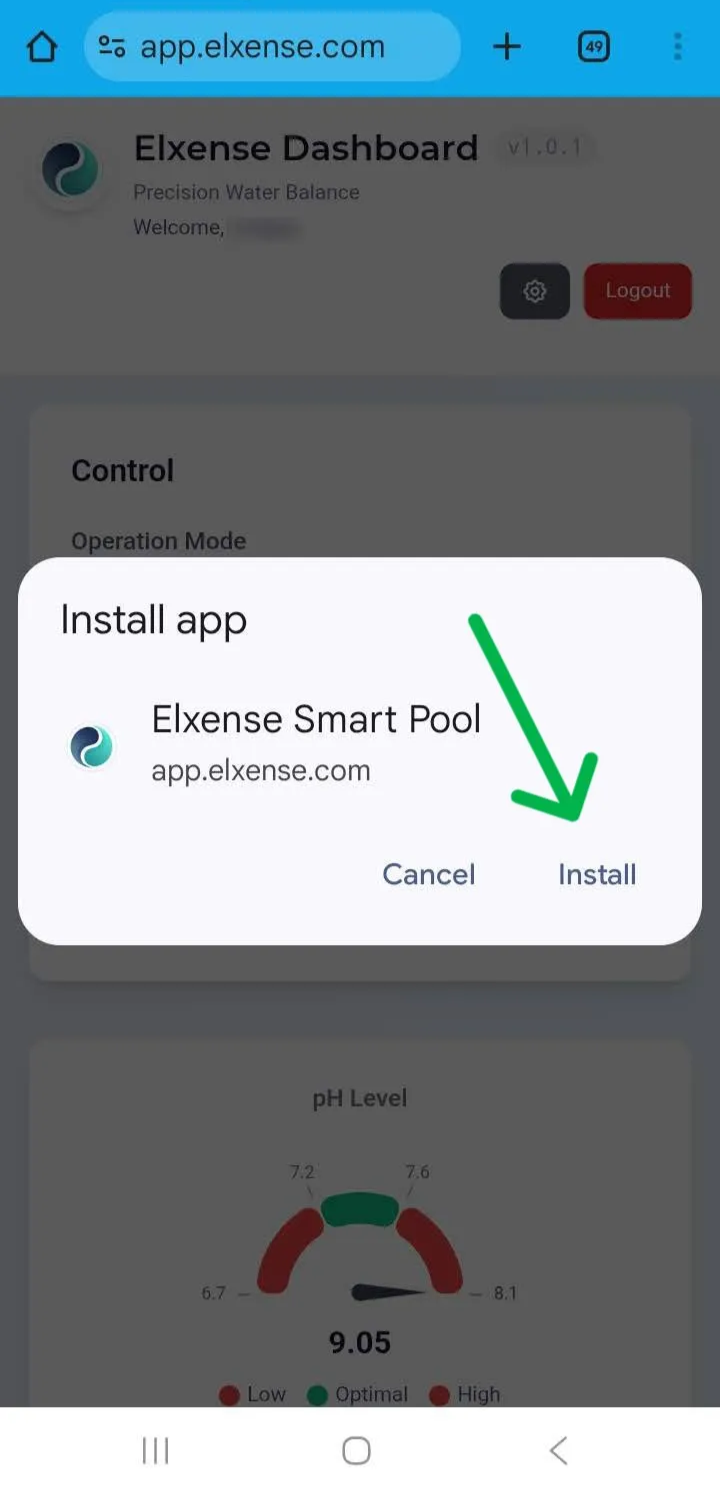
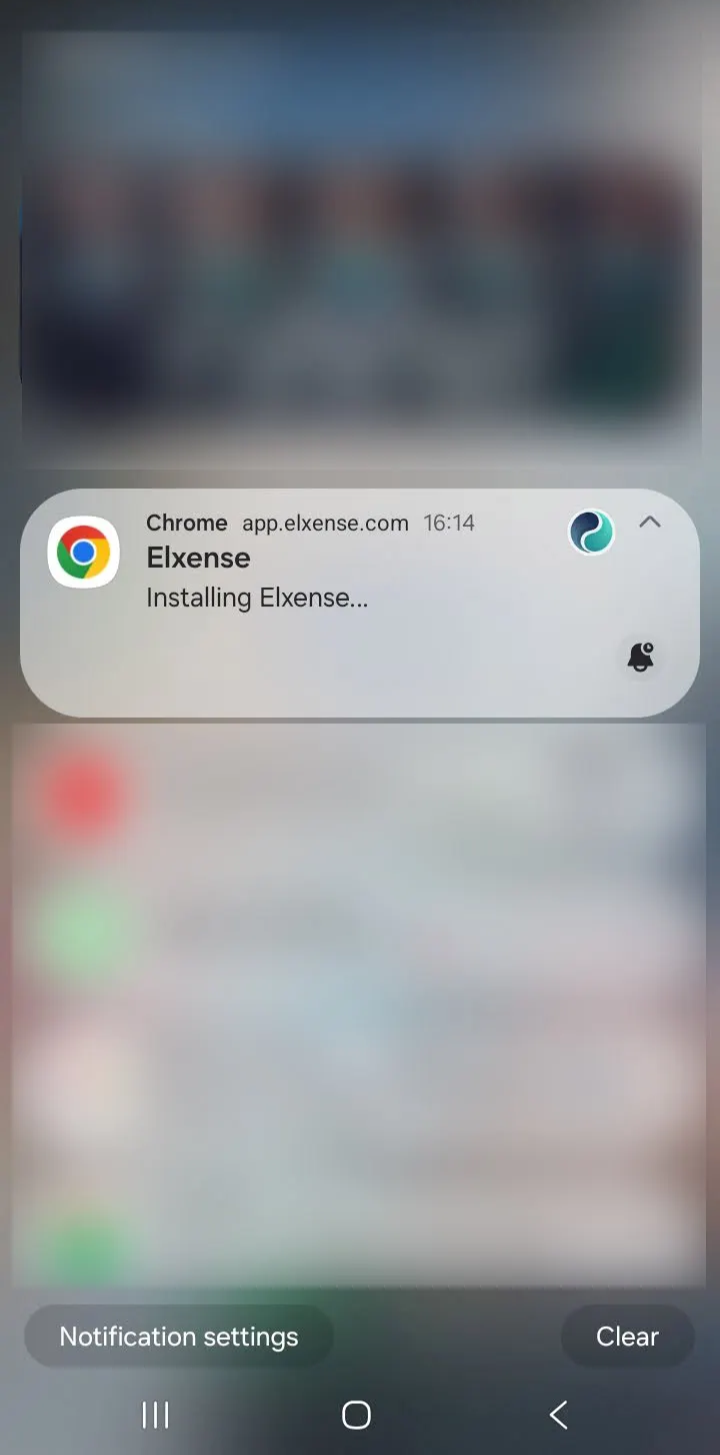
- Wait for the installation to complete. You will see Elxense in your Application List.