Device Sharing
Sharing Your Device
Share your device so family members or other relevant people can control and monitor values from their own mobile phones. The Owner is the person who first registered and connected to the system — typically the user who received the email from Elxense and activated the device. The Owner can share the device with up to 5 additional users and manage their permissions.
Steps to share the device with other users:
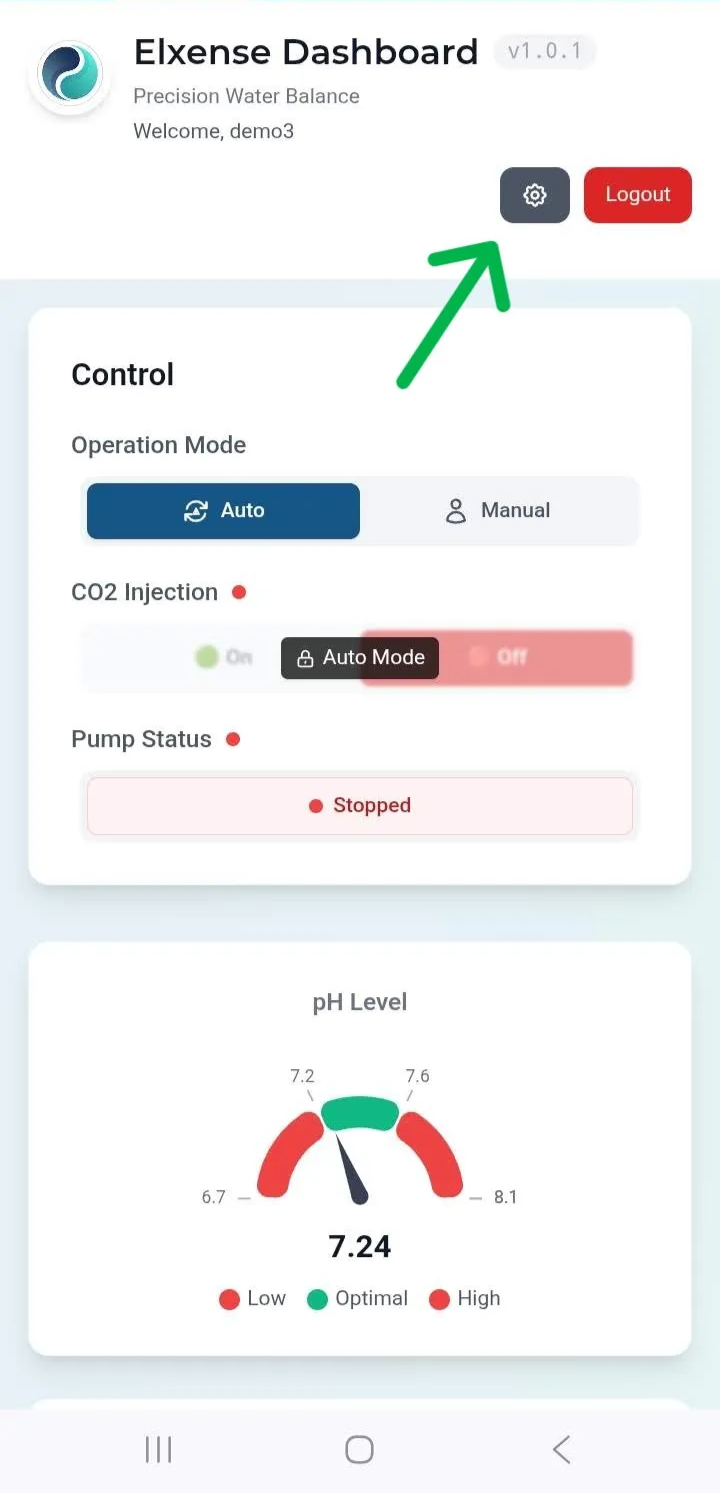
- Tap the button on the Dashboard as shown.
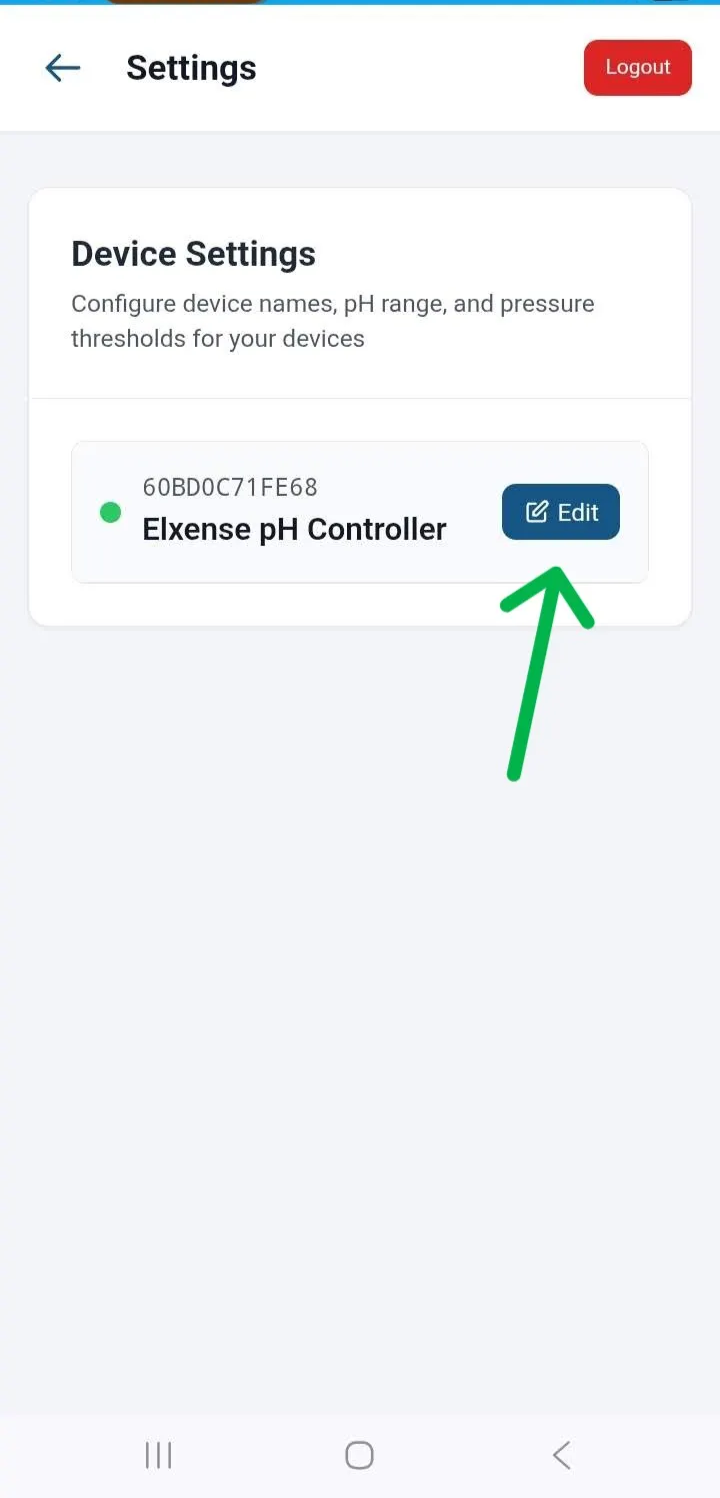
- Tap Edit on the device you want to share (one user can own multiple devices).
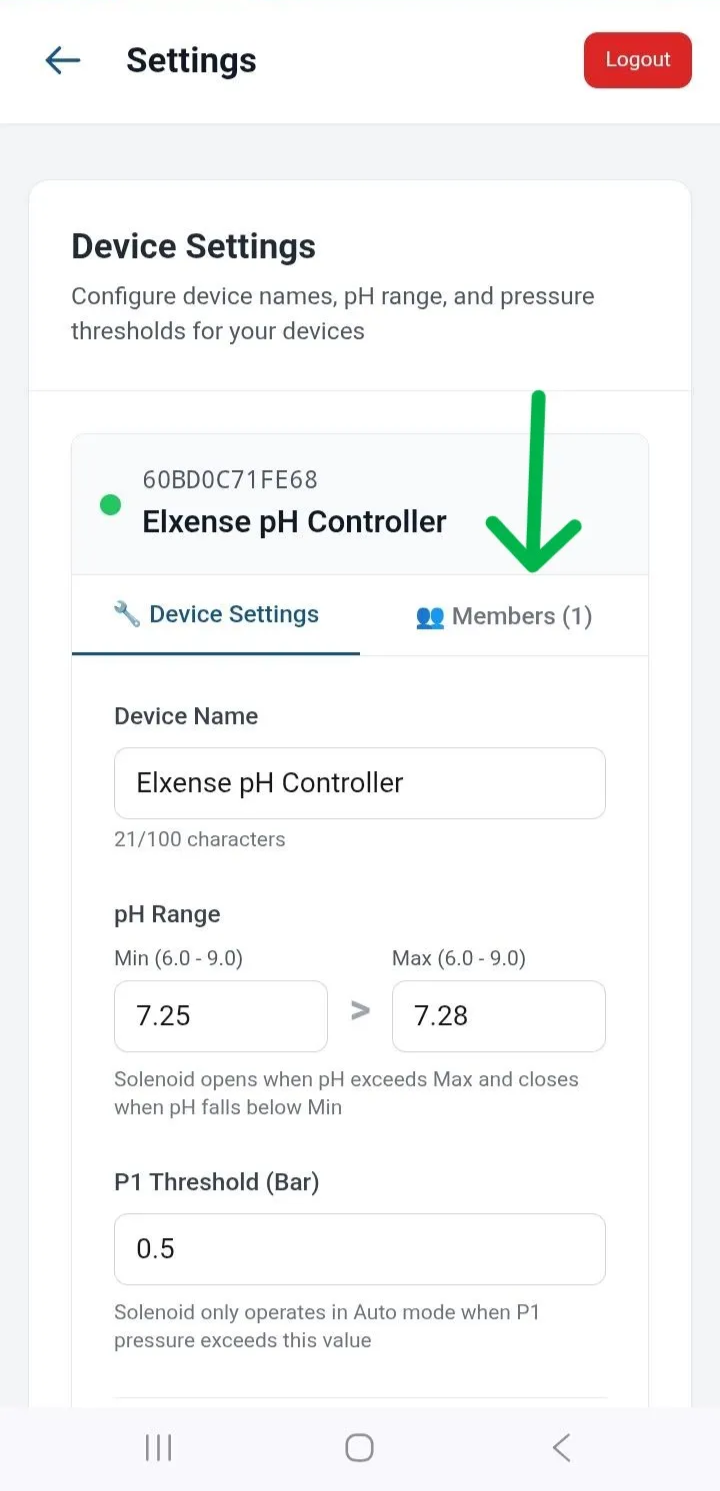
- Select the Member tab as shown.
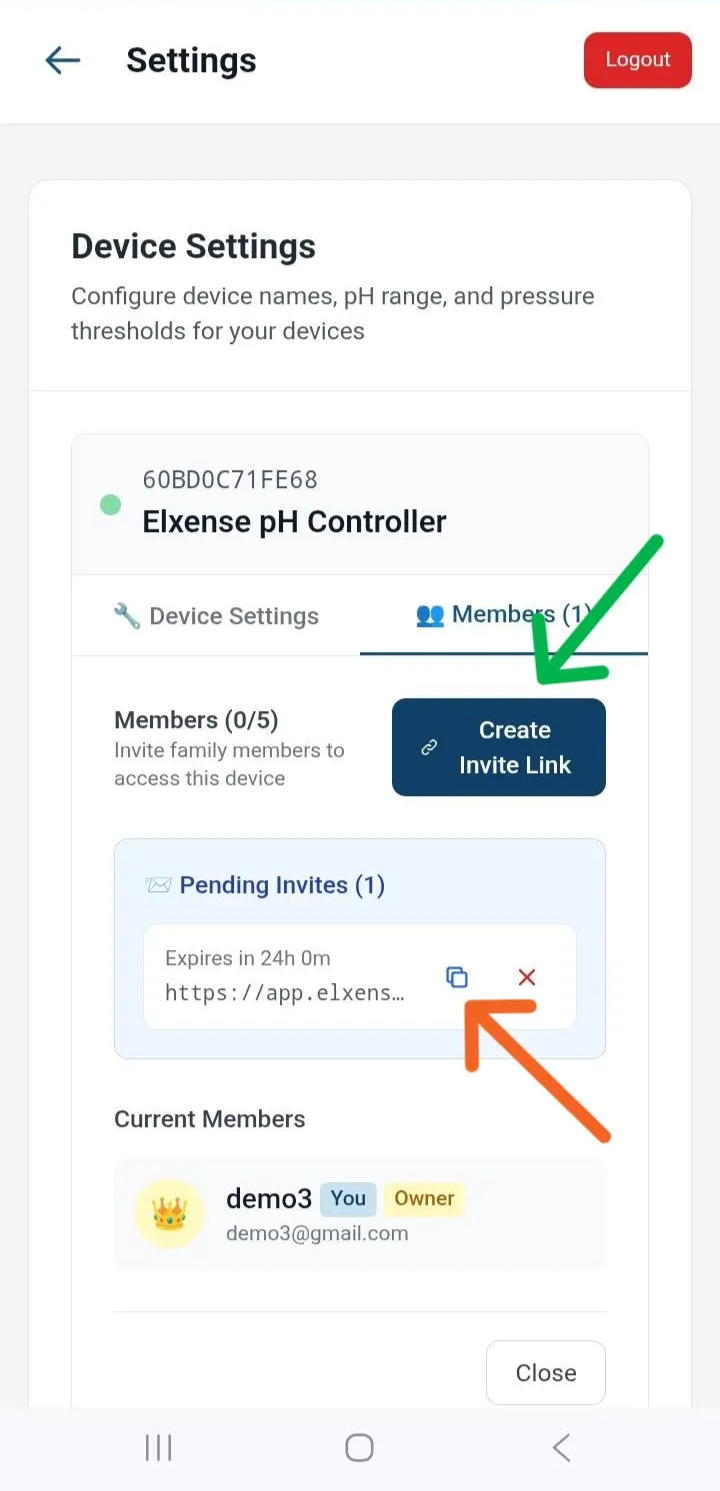
- Press the Create Invite Link button (green arrow) to generate an invitation link. Once generated, press Copy Link (orange arrow) and send it to the person you want to invite via any channel — LINE, email, etc.
-
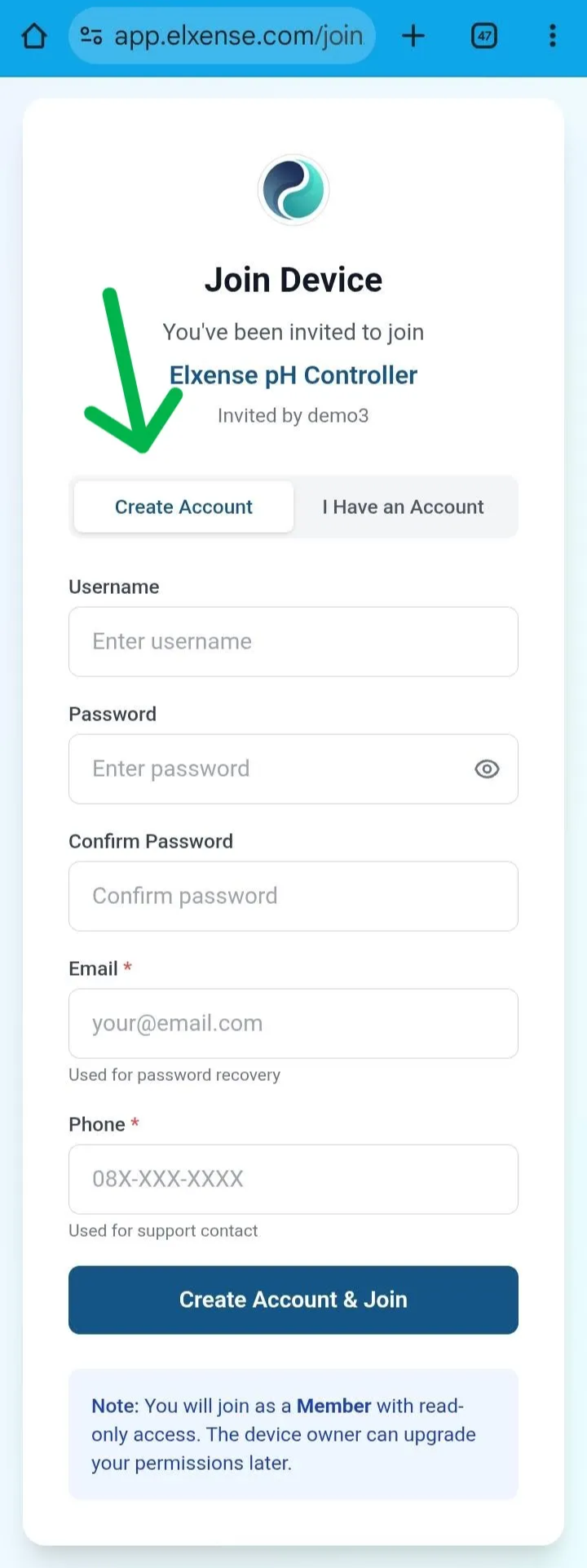
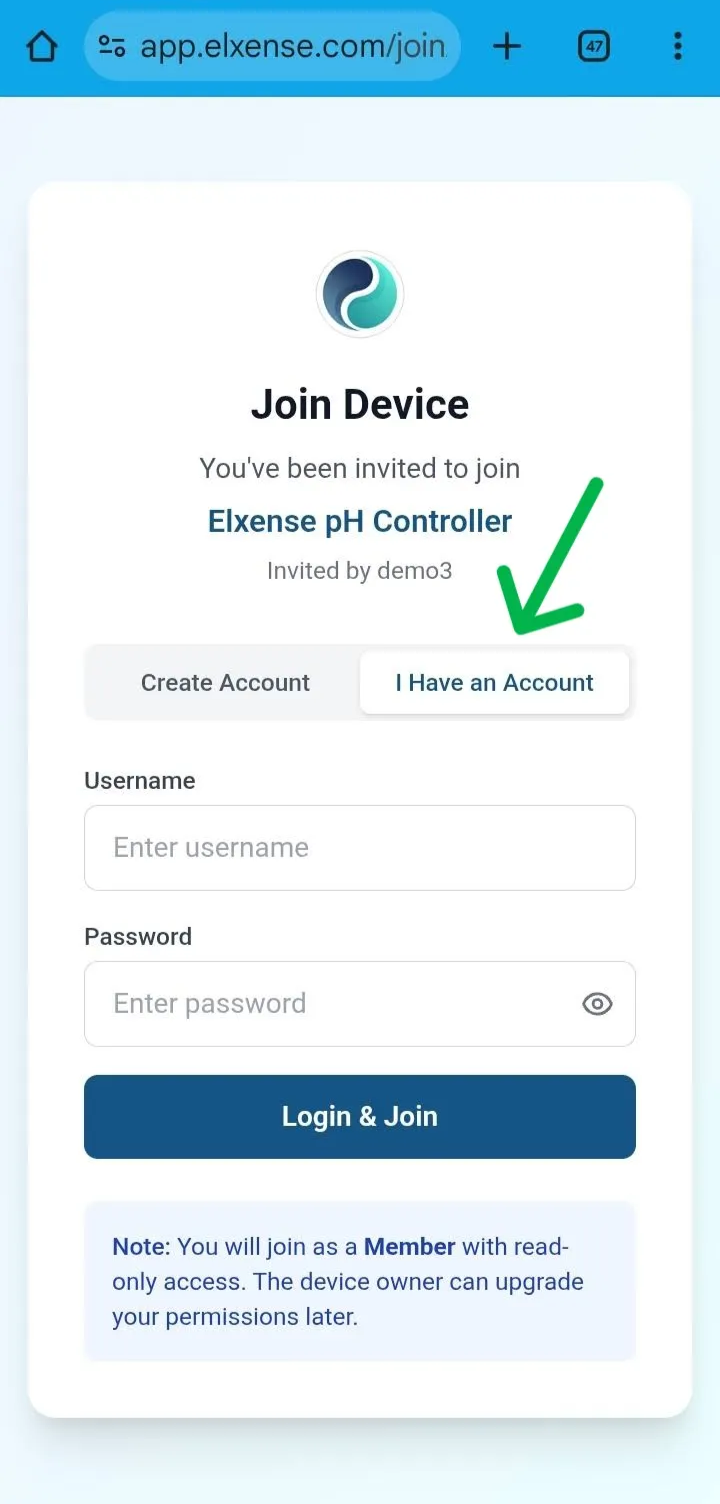
When the invited person opens the link, they will see one of 2 scenarios:
- Users without an Elxense account must fill in the Create Account tab.
- Users who already have an Elxense account can log in directly.
Member Permissions
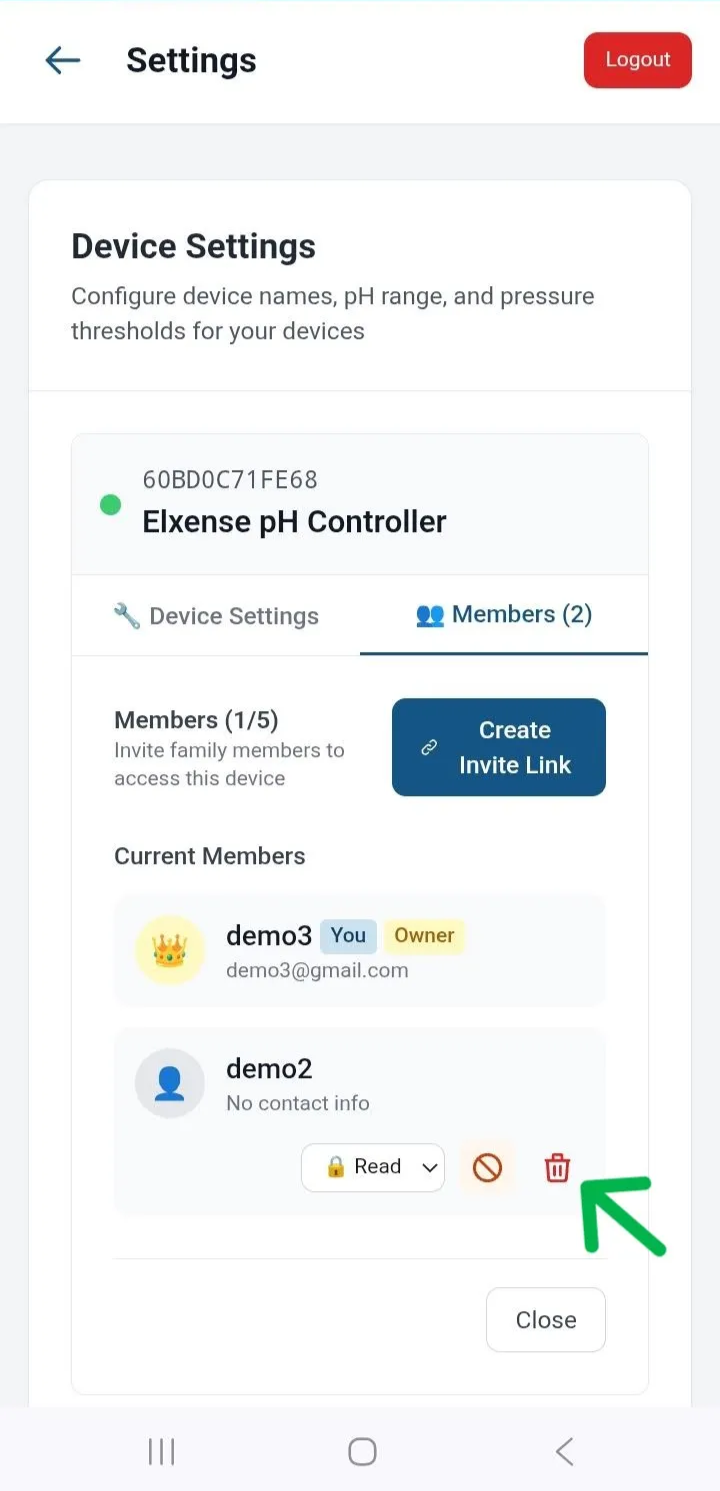
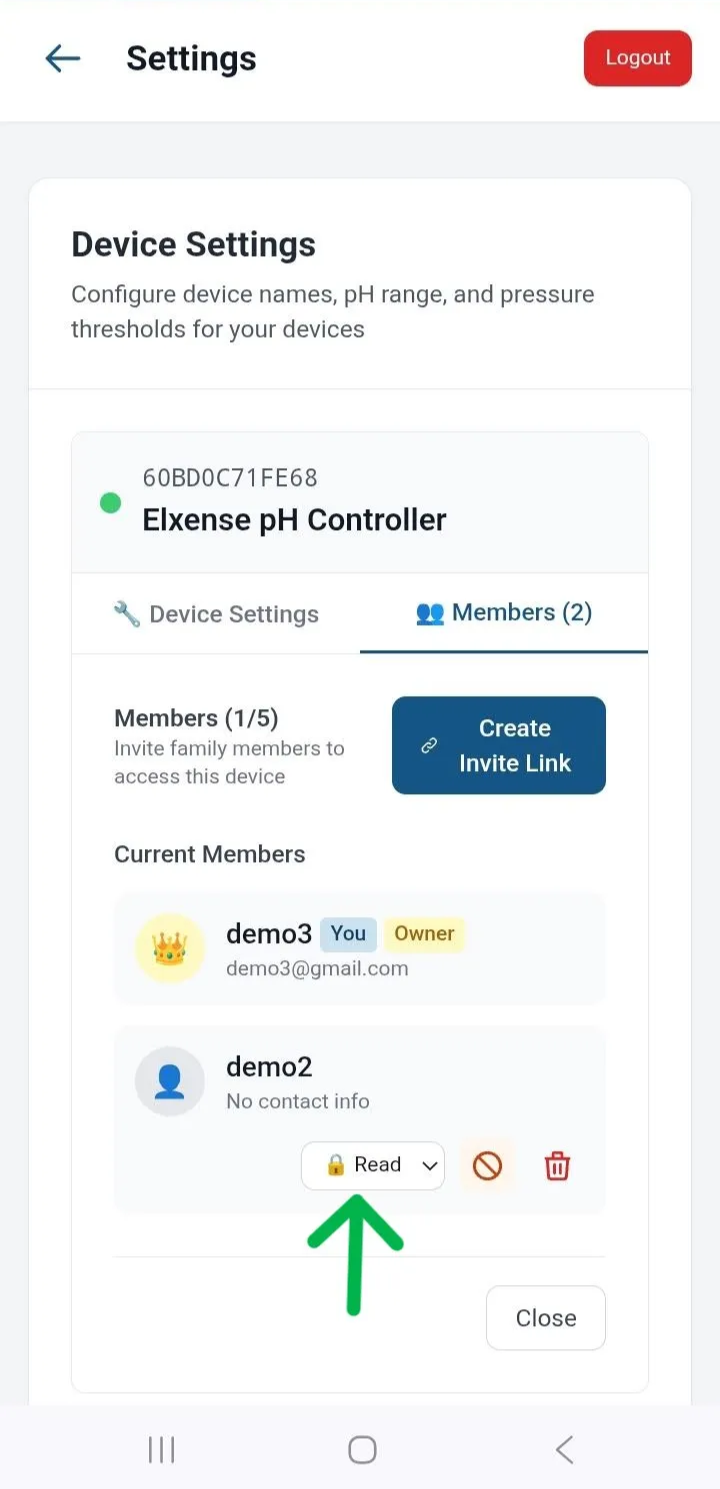
The Owner can set each member's permissions — either allowing device control or view-only access. By default, new members receive Read permissions. The Owner can change this to Full.
- Read — Cannot control the device; can only view values.
- Full — Can control the device (members cannot manage other members).
Removing Members
To remove a member from the device, tap the trash icon next to the member's name.