Site Settings
The settings page allows site owners to manage team members, invite links, and device configurations. Access it by tapping the ⚙️ Settings icon on the site dashboard.
The settings page has two tabs: Members and Device Settings.
Members Tab
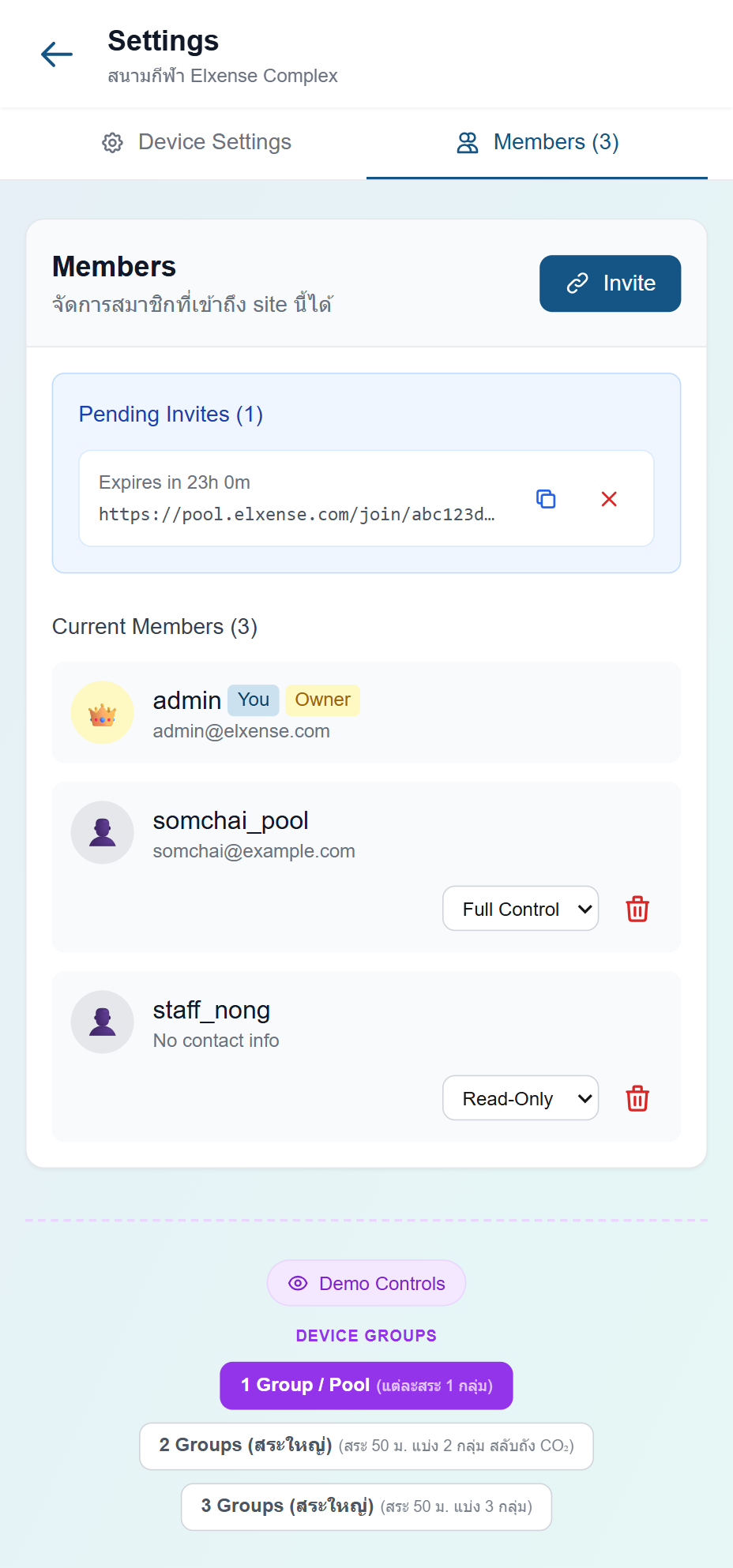
Invite Members
Create invite links to add new team members to your site:
- Select the permission level: Read-only or Full control
- Tap Create Link
- A shareable link will be generated
Managing invite links:
- Tap the Copy button to copy the link to your clipboard
- Tap Revoke to cancel a pending invite
- Each link shows the permission level and expiry time (e.g. "read-only · expires 23h")
Members List
All current site members are listed with:
- Avatar (color-coded by role)
- Username (with "(you)" indicator for your own account)
- Email address
- Role — Owner, Full Control, or Read Only
As a site owner, you can:
- Change a member's role using the dropdown (Full Control ↔ Read Only)
- Remove a member by tapping the trash icon
Device Settings Tab
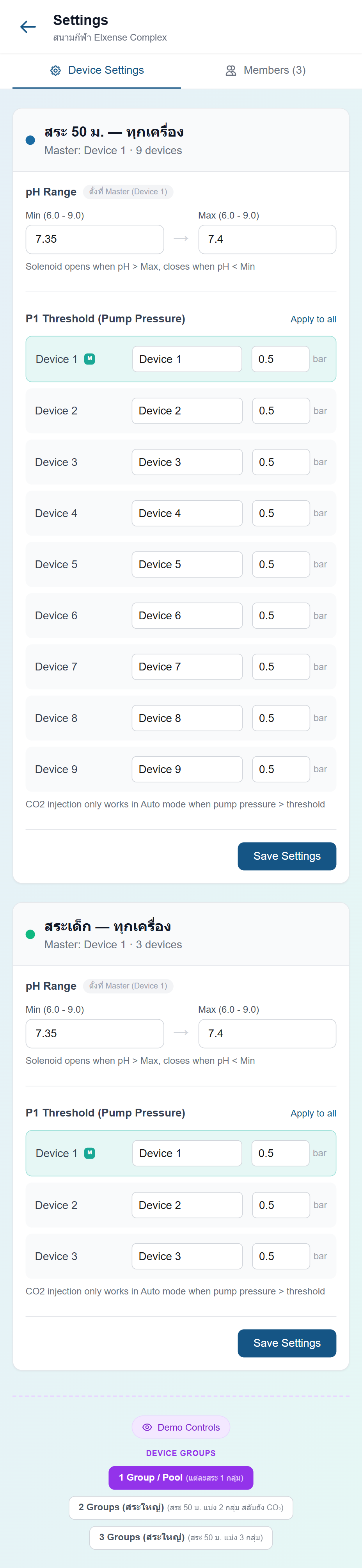
Configure pH range and pressure thresholds per device group:
pH Range (per group)
Set the minimum and maximum pH values for each device group:
- Tap the edit (pencil) icon next to the group name
- Adjust pH Min and pH Max using the stepper controls (−/+) or type directly
- Tap Save
The devices in the group will use this range to determine when to inject CO₂ (in Auto mode, CO₂ is injected when pH exceeds the maximum).
Pressure Threshold P1 (per device)
Set the pump pressure threshold for each device individually:
- In the same edit view, find the P1 threshold section
- Adjust the value for each device using the stepper controls
- Use "Apply to all" to set the same value across all devices in the group
- Tap Save
The P1 threshold is a safety check — devices will not inject CO₂ if pump pressure drops below this value (indicating the pump may not be running).